
| Overview User permissions grant users access to a set of features.
|
TABLE OF CONTENTS
- User Permission Levels (Company-Level Settings)
- Standard Access
- Advanced Access
- Administrator Access
- How to Manage User Permissions
User Permission Levels (Company-Level Settings)
User permissions determine what actions team members can perform in your account. There are three permission levels: Standard, Advanced, and Administrator.
Standard Access
Users with Standard permissions can perform basic purchasing and project management tasks. They cannot use Create PO.
Purchasing
- Edit order names
- Cancel orders and POs
- Create and issue change orders
- Receive POs
Suppliers
- View the company supplier list and contacts
- Add suppliers and supplier contacts
Reports
- Export reports:
- Purchase Orders (PO CSV)
- PO Items (CSV)
- Quote Items (CSV)
Projects
- Join or leave projects
- View all orders within a project
- Create and edit Bills of Material (BOMs)
- Leave internal comments (where enabled)
Notifications
- Subscribe to their own project spend notifications
Optional Features (If Enabled)
- Accounting PO Exports: Download export files
- Expenses: Create and edit their own expenses
- Inventory: View inventory items
- Invoices: View the invoice homepage
- Requisitions: Create and edit their own requisitions
Advanced Access
- Users with Advanced permissions have all Standard permissions plus additional capabilities.
Purchasing
- Have the Create PO feature enabled
Optional Features (If Enabled)
- Inventory:
- Create transfer orders
- Modify inventory items
- Invoices:
- Upload invoice documents
- Create invoice approvals
Administrator Access
- Administrators have full access, including all Standard and Advanced permissions. They can manage company settings, users, and financial access.
User Management
- Assign and edit user permission levels
- Add, edit, and deactivate users
- Assign and edit user purchasing roles
Company Settings
- General Settings:
- Change company address and logo
- Purchase Order Settings:
- Add and edit terms and conditions
- Update AP contact and billing reference text
- Enable or disable approval history visibility on PO PDFs
- Manage accounting and distribution lists
- Modify purchase order roles and purchasing limits
- Add and edit company-wide delivery locations
- Add and edit cost codes (if enabled)
Project Management
- Create and archive projects
- Edit project details:
- Project number (if not integrated)
- Address
- Billing entity
- Add and remove cost codes
- Add or remove users from projects
- Manage spend notifications for all users
- Enable or disable approval permissions for other users (if applicable to):
- Invoices
- Expenses
- Requisitions
Financial Access
- View all expenses, invoices, and orders
- Edit any unapproved expenses and invoices
How to Manage User Permissions
- Admins can change user permissions at both the company level and the project level.
Change a User’s Company Level Permissions
- Only administrators can change a user’s permission level.
To change permissions:
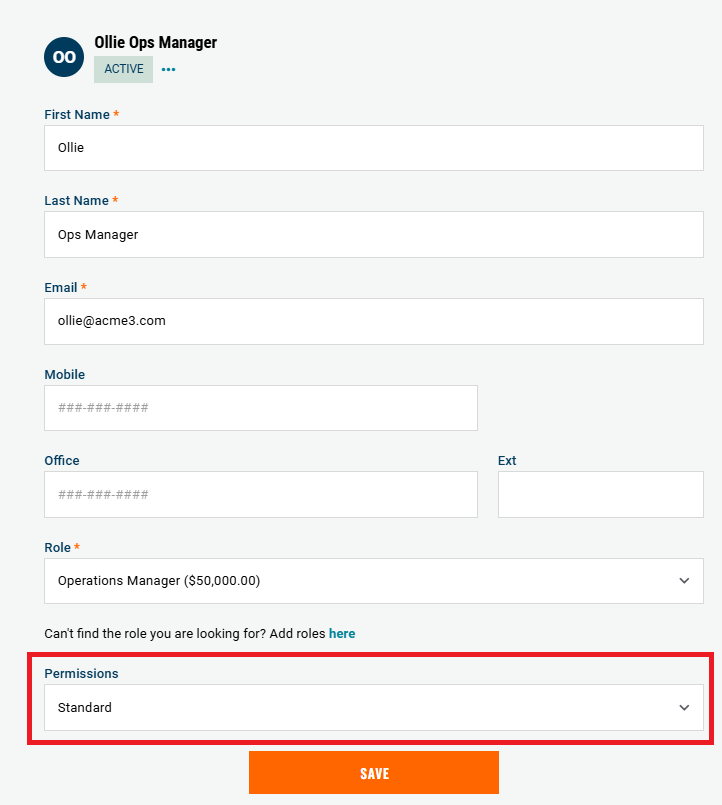
- Go to the Permissions page.
- Select the user you want to update.
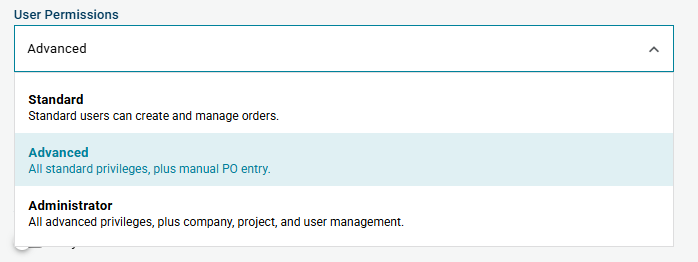
- From the Permission Level dropdown, choose one of the following options:
- Standard
- Advanced
- Administrator
- The new permission level takes effect immediately.
Change a User’s Project Level Permissions
- Project-level permissions control what a user can do within individual projects.
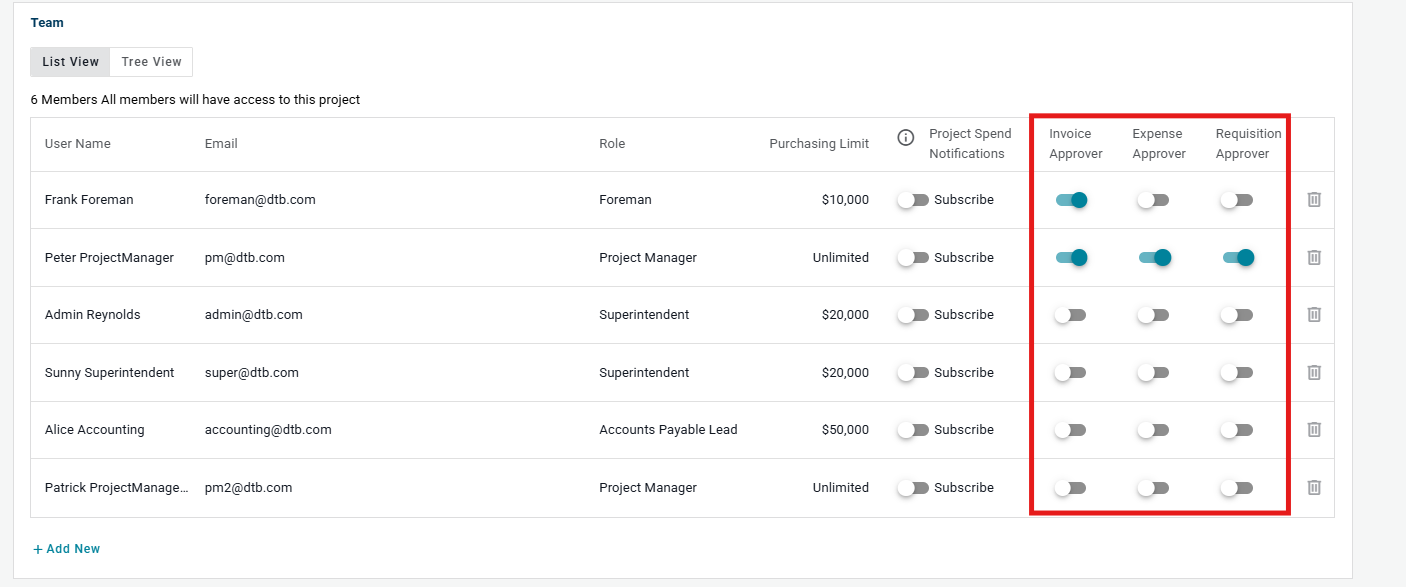
- Admins can enable or disable these toggles for each team member.
Available Toggles
Invoice Approver
- Grants the ability to review and approve invoices submitted to the project.
Expense Approver
- Grants the ability to review and approve expenses within the project.
Requisition Approver
- Grants the ability to approve requisition requests before they are sent to a buyer.
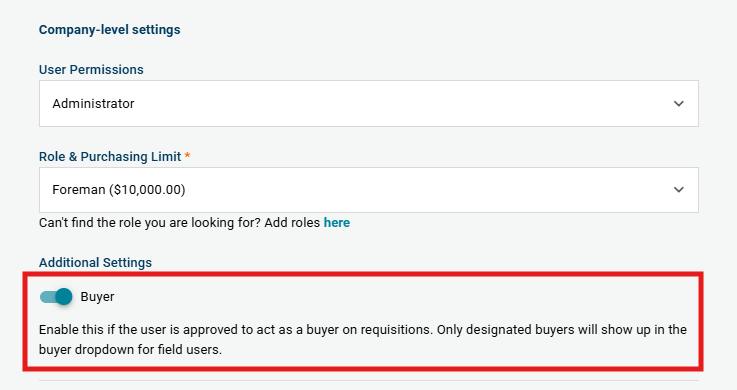
Buyer Role
The Buyer role is part of the requisition process.
When the Buyer toggle is enabled for a user:
- Only their name(s) appear in the Buyer dropdown on requisitions.
- They are responsible for purchasing approved items.
Notes:
- Permission toggles are managed per project.
- A user’s toggles can differ between projects.
- Turning a toggle off removes that user’s approval for that specific project.

Need help?
Reach out to our Customer Support team:
- Call us toll-free at 1-833-712-5021
- Chat with us in our web and mobile apps