Need to update a purchase order that’s already been issued? Create a Change Order to make adjustments without starting from scratch. You can use a change order to:
|
Creating a Change Order
Create a Change Order on the Web App
Open the purchase order you want to update.
Click “CHANGE ORDER” button at the top right of the order summary.
Make your edits and issue the change order.
A new PO revision will be created.

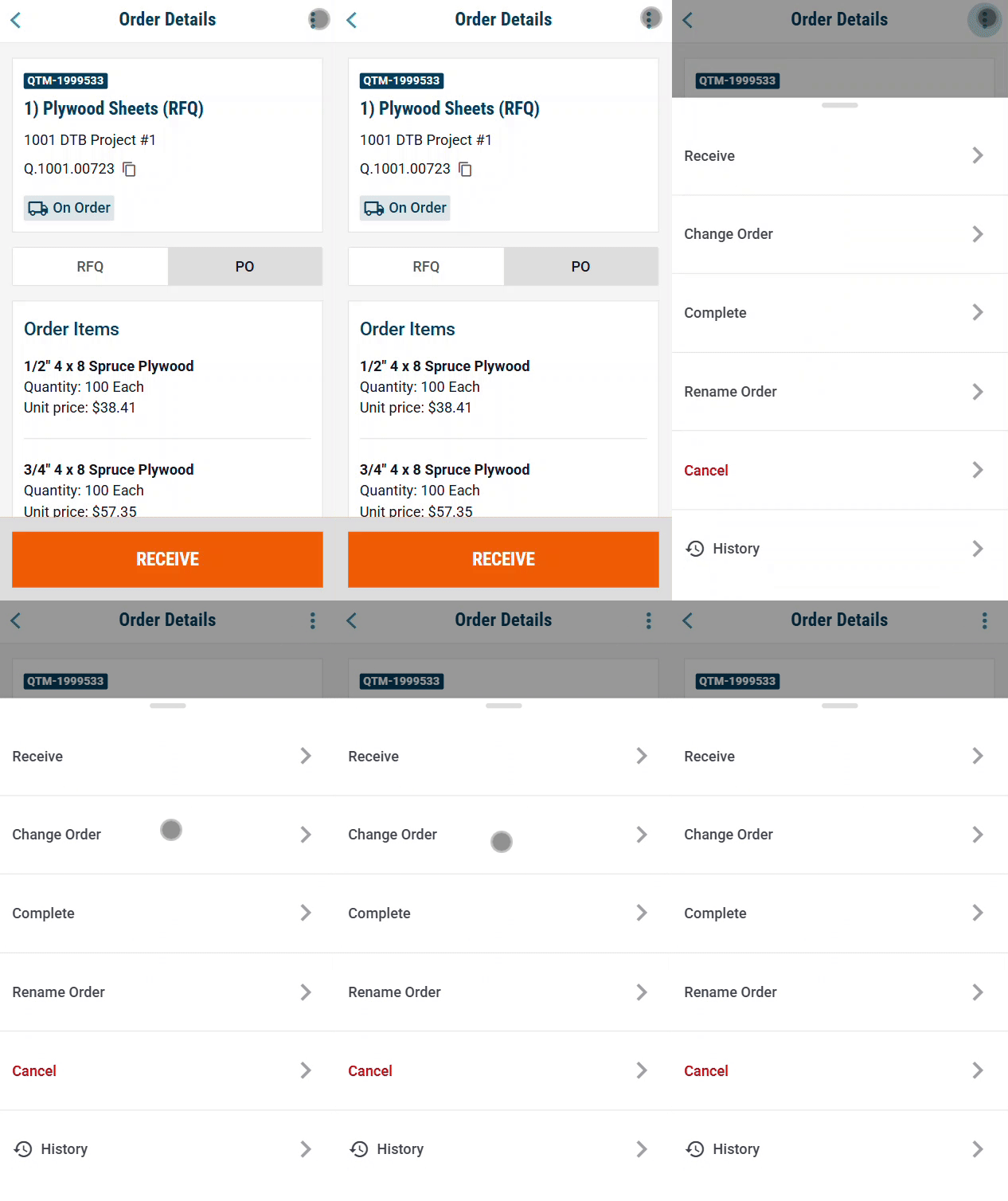
Create a Change Order on Mobile
Open the purchase order you want to update.
Tap the three-dot menu in the top-right corner.
Select “CHANGE ORDER”
Make your edits and issue the change order.
A new PO revision will be created.
Note: If the Change Order option is missing, it’s likely because the purchase order has a sync message that needs to be resolved. ⚠️ Until the sync message is cleared, creating a change order is disabled.
- Reach out to your admin to help resolve the issue.
Note: If you have sent a change order for approval and need to edit it, you as the change order creator can do so, and so can the approver. Other team members cannot edit the pending change order.
Need help?
Reach out to our Customer Support team:
- Call us toll-free at 1-833-712-5021
- Chat with us in our web and mobile apps